Should you turn off motion blur and film grain? Post-processing effects explained
Games add a last layer of effects after the picture is drawn: motion blur, film grain, chromatic aberration, depth of field, vignette and bloom. They copy the flaws of real cameras to feel cinematic, but they are not there to make the image clearer.
Drag a simple scene to turn the camera, switch each effect on and off, and see what it does to the picture and the HUD text. You will learn which ones to try off first, which are fine to keep, why motion blur can make some people feel unwell, and a calm starting setup for new players.
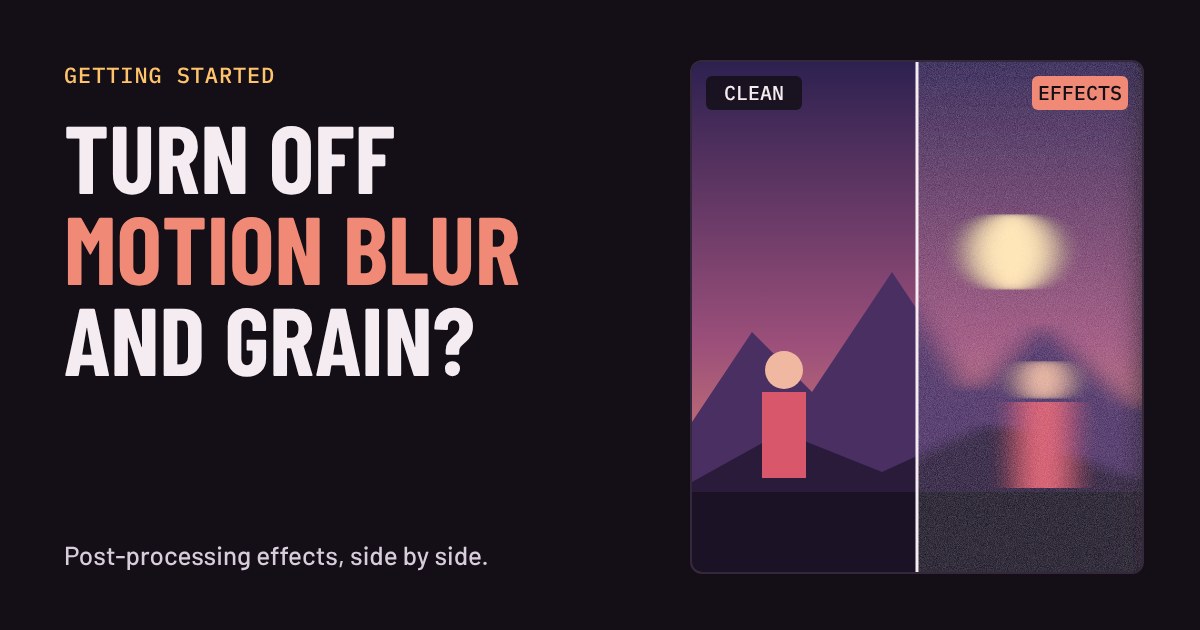
Most games add a last layer of effects after the picture has been drawn, a bit like the filters on a phone photo. This is called post-processing, and it shows up in your settings as motion blur, film grain, chromatic aberration and a few friends. Some of these effects make a scene look rich. Others make it harder to see, and for some people harder to sit through. The good news is that you can judge each one yourself in about a minute.
What each effect does
Real cameras have flaws: moving things smear, film is grainy, cheap lenses leave coloured edges, and a close subject leaves the background soft. Games copy those flaws on purpose to feel like a movie. They are not there to make the image clearer, and that is the key thing to know when you pick settings.
| Effect | What you see | Good starting point |
|---|---|---|
| Motion blur | Streaks when the camera turns | Off |
| Film grain | Fine noise over the whole picture | Off |
| Chromatic aberration | Red and blue fringes near the screen edges | Off |
| Depth of field | Things far from the focus point go soft | Your taste; off in fast games |
| Vignette | Darker corners | Off, or low |
| Bloom | Bright lights glow | On, medium is fine |
Try them on one scene
Drag the picture sideways to turn the camera, or press Auto-pan. Switch the effects on one at a time and watch the small distant sign and the HUD text in the corners. Then try them all together: that is what a game with every effect turned up looks like.
Motion blur: the one that matters most
Of all six, motion blur has the biggest effect on how a game plays. When you turn the camera quickly, it smears the whole picture, which is the exact moment you are trying to spot something. In shooters, racing games and anything where you track small shapes, that smear costs you detail. In a slow adventure it can look smooth and film-like, so it is a fair choice there.
It also matters for comfort. Xbox's accessibility guidelines for game makers advise avoiding motion blur and camera shake, or letting players switch them off, and they link motion sickness to a mismatch between what you see moving on screen and a body that is sitting still. That does not happen to everyone, but if a game makes you queasy, motion blur is the first thing to turn off. If a game gives you a slider instead of a switch, try a low value and see how it feels.
Do these effects cost frame rate?
Usually not much. Compared with shadows, ray tracing and texture settings, post-processing effects are generally described as cheap, and that is why people often say to leave them as they are. Depth of field and bloom can cost a little more in some games, though, and it varies from title to title. So do not switch them off to gain frames. Switch them off because the picture is clearer and more comfortable. If you want to be sure, turn on your game's FPS counter, change one setting at a time and watch the number.
If a game makes you feel unwell
Work through these in order, changing one thing at a time. Turn motion blur off first. Then lower camera shake and head bob if the game has them. Widen the field of view a little if the game lets you, since Xbox's guidelines note that an adjustable angle helps players find one that suits them. Sit a comfortable distance from the screen, keep the room lit, and take a break if you feel dizzy. Stop playing when you feel unwell rather than pushing through.
Where to find them and what to set first
Look in the Graphics or Video menu first. Some games put blur, shake and similar options under Accessibility or Camera instead, so check there too, and on consoles under the game's own display settings. If you cannot find an effect, try searching the menu for its name.
A starting setup that suits most new players: motion blur off, chromatic aberration off, film grain off, vignette off or low, bloom on at a medium level, and depth of field on only in slow story games. Play for fifteen minutes, then change one thing at a time if something still bothers you. These effects are taste, not performance, and the right answer is the one that looks good and feels good to you.
More in Getting Started
all Getting Started →29 Oct What is anti-aliasing? Jaggies, FXAA, MSAA and TAA explained Ever noticed little stair steps on a diagonal line or the edge of a round object in a game? Those are jaggies, and anti-aliasing is the… Getting Started
27 Oct Will a game run on your PC? Minimum vs recommended requirements explained Every game store page has a Minimum and a Recommended box full of part names. Here is what each column actually promises, which of the five… Getting Started
25 Oct Why does a game stutter when the FPS looks fine? Frame time and 1% lows explained Your game says 60 FPS but feels choppy. That is not in your head: FPS is an average, and it hides how evenly the frames arrive. Learn what… Getting Started
23 Oct What is V-Sync? Screen tearing, G-Sync and FreeSync explained Why does your game screen sometimes show a torn line, and what do V-Sync, G-Sync and FreeSync do about it? This guide explains how your… Getting Started
20 Oct What is HDR in games? Nits, DisplayHDR and when to turn it on HDR promises brighter highlights and deeper shadows, but only if your screen, your system and your game agree. This guide explains what HDR… Getting Started
18 Oct Fullscreen, borderless or windowed? Which display mode to pick Every PC game asks you to choose Fullscreen, Borderless or Windowed. They all show the game, but they behave differently when you alt-tab…