What is anti-aliasing? Jaggies, FXAA, MSAA and TAA explained
Ever noticed little stair steps on a diagonal line or the edge of a round object in a game? Those are jaggies, and anti-aliasing is the setting that smooths them.
Drag a split-screen demo to compare no anti-aliasing with FXAA, MSAA and SSAA, and learn what each costs your graphics card, why TAA is so common now, and which one to pick.
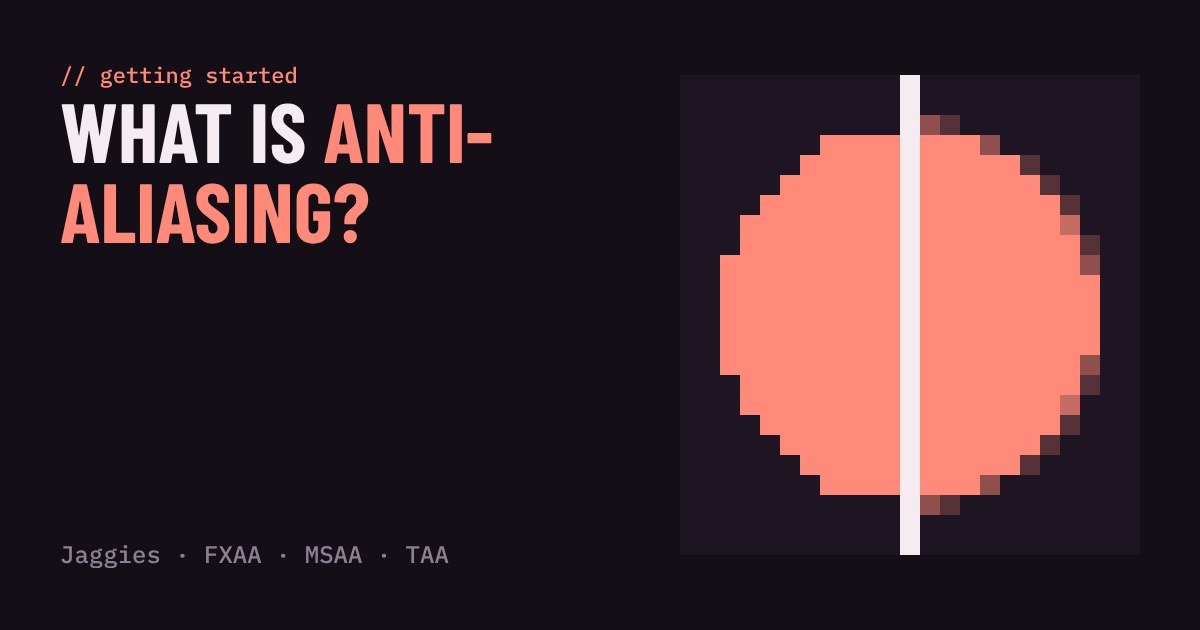
What are jaggies?
Look closely at a diagonal line or the edge of a round object in a game and you will often see little stair steps. Players call them jaggies. The proper name is aliasing, and the settings that fight it are called anti-aliasing, or AA for short.
The cause is simple. Your screen is a grid of square pixels, and every pixel can show only one colour. When a smooth edge cuts through a pixel, the game has to pick: is this pixel "object" or "background"? Pick that for thousands of pixels in a row and the smooth edge turns into a staircase. When the camera moves, the steps seem to crawl along the edge, which is even easier to notice than a still picture.
Try it: split the picture
The demo below draws the same tiny scene twice. The left side has no anti-aliasing. The right side uses the method you pick. Drag the divider, and slide the resolution down to make the pixels big enough to see what each method really does.
Watch the thin amber line and the striped patch in particular. Edges of solid shapes are easy to smooth. Thin lines and fine patterns are where the methods start to differ.
The main kinds of anti-aliasing
SSAA (supersampling) is the brute-force way. The game draws the picture at a higher resolution, say twice as wide and twice as tall, then shrinks it to fit your screen. Every final pixel is the average of four drawn ones. It looks great and fixes almost everything, but it costs about four times the work for the graphics card, so it is rare in modern games.
MSAA (multisample) is a shortcut. It checks several points inside each pixel, but only to find out which shapes cover the pixel. It does the expensive colouring work once. That makes it cheaper than SSAA and very good on the edges of 3D shapes. The catch is that it does nothing for patterns inside a surface, such as fine textures or shiny highlights, which is why the stripes in the demo stay rough. Many modern engines also do not offer it.
FXAA (fast approximate) works on the finished picture. It looks for sharp contrast between neighbouring pixels and blurs just those places. It is very cheap and catches everything, including lines and textures, but it cannot tell an ugly edge from a nice crisp detail, so it makes the whole image a little softer.
TAA (temporal) is the most common choice in recent games. It nudges the camera by a tiny amount each frame and blends several frames together, so it gets extra samples over time instead of in one frame. It smooths edges and shimmering well at a modest cost. The downsides are some softness and, in fast motion, faint trails behind moving objects. Upscalers such as DLSS and FSR build on the same idea, and some games also offer a mode that applies this kind of smoothing at your screen's native resolution.
What to look for
You do not need to study the menu for long. A few rules cover most situations:
Higher resolution helps too. Smaller pixels mean smaller steps. On a 1440p or 4K screen you need less AA than on a 1080p one, and the slider above shows the same effect.
Start with the game's default. Most games pick TAA or something like it. If the picture looks too soft, try a sharpening setting before you turn AA off.
If your frame rate is low, AA is not the first thing to cut. Cheap methods like FXAA and TAA cost little. Heavy ones like SSAA or high MSAA levels are worth lowering first.
Turn it off only if you prefer it. Some competitive players like the sharpest possible picture and accept the jaggies. That is a taste choice, not a fix.
More in Getting Started
all Getting Started →27 Oct Will a game run on your PC? Minimum vs recommended requirements explained Every game store page has a Minimum and a Recommended box full of part names. Here is what each column actually promises, which of the five… Getting Started
25 Oct Why does a game stutter when the FPS looks fine? Frame time and 1% lows explained Your game says 60 FPS but feels choppy. That is not in your head: FPS is an average, and it hides how evenly the frames arrive. Learn what… Getting Started
23 Oct What is V-Sync? Screen tearing, G-Sync and FreeSync explained Why does your game screen sometimes show a torn line, and what do V-Sync, G-Sync and FreeSync do about it? This guide explains how your… Getting Started
20 Oct What is HDR in games? Nits, DisplayHDR and when to turn it on HDR promises brighter highlights and deeper shadows, but only if your screen, your system and your game agree. This guide explains what HDR… Getting Started
18 Oct Fullscreen, borderless or windowed? Which display mode to pick Every PC game asks you to choose Fullscreen, Borderless or Windowed. They all show the game, but they behave differently when you alt-tab… Getting Started
16 Oct Which graphics settings cost the most FPS? Shadows, ray tracing and textures explained Graphics presets like Low, High and Ultra hide a useful fact: settings do not cost the same. A few of them, such as ray tracing, shadows…