Will a game run on your PC? Minimum vs recommended requirements explained
Every game store page has a Minimum and a Recommended box full of part names. Here is what each column actually promises, which of the five lines matters most, and how to find your own parts in Task Manager.
Then try the interactive: pick the parts of an imaginary PC and see how the weakest one decides how well the game runs.
You found a game you want. The store page has a box called "System requirements" with two columns, Minimum and Recommended, and a lot of part names you may not recognise. Here is how to read it in about a minute, and how to find out what is inside your own PC.
What the two columns mean
Minimum is the weakest setup the publisher says the game can start and run on. Expect lower graphics settings and a modest frame rate. It is a floor, not a promise of a good time.
Recommended is the setup the publisher suggests for a smoother experience. There is no shared rulebook, so each publisher decides what "smooth" means. Some now write the target next to it, such as "1080p, 60 FPS, High preset". When they do, that line is the most useful one on the page.
The five lines you will see
Graphics card (GPU) draws the picture. For most games it is the line that matters most.
Processor (CPU) runs the game's logic. A weak one holds back a strong graphics card, and games with many characters on screen lean on it harder.
Memory (RAM) is short-term space for the game and everything else you have open. Too little and the game stutters while Windows shuffles data around.
Storage is the space the game takes up. Some listings also say SSD, which means a hard drive will load slowly or may cause stutter.
Operating system is usually a recent 64-bit version of Windows. If yours is older, nothing else on the list matters.
Try it: the weakest part decides
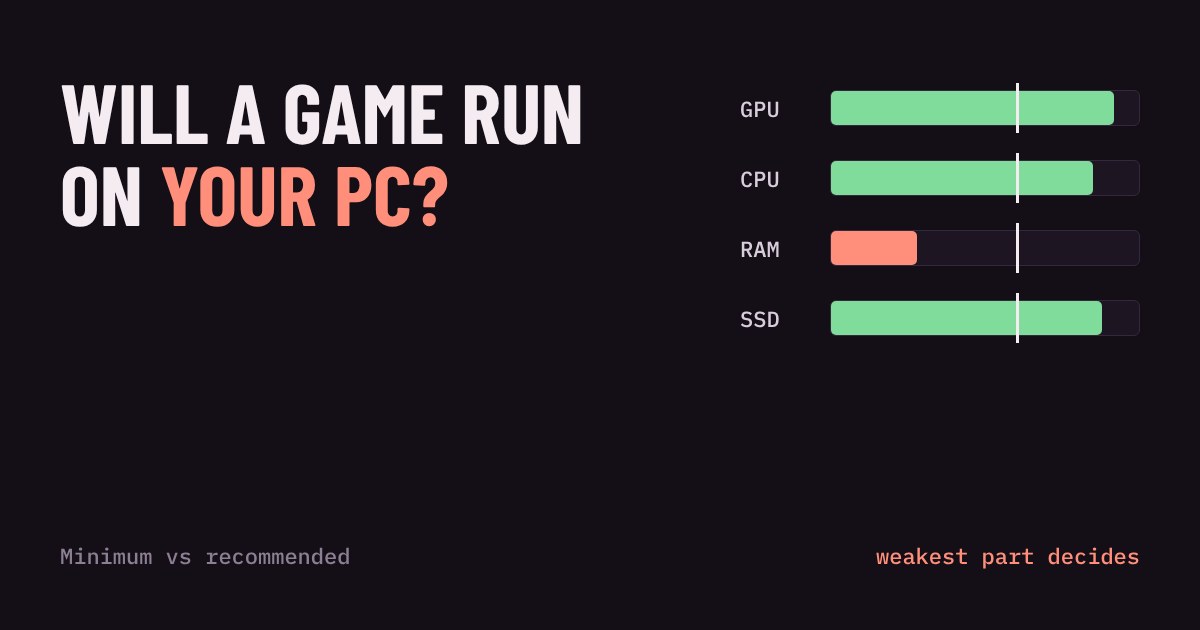
A game runs as well as its weakest part allows. Pick the parts of an imaginary PC below and compare them with a made-up game's requirements. The example game is invented, so the tiers are just a simple way to rank parts.
Try setting the graphics card to high-end and the memory to 4 GB. The verdict stays at "below minimum". Upgrades only help when they fix the part that is actually behind.
How to check your own PC
On Windows, right-click the Start button and open Task Manager, then the Performance tab. It lists your processor, memory, disks and graphics card by name. To see the Windows version, open Settings, then System, then About. Type each part name into a search engine to see how old it is and roughly where it sits against the requirement.
If the requirement names a graphics card and yours is a newer model from the same maker with a similar or higher number, that is usually a good sign. A much older model with a similar number is not. When in doubt, look for a review or benchmark that uses your exact card in that game.
Common traps
Laptops. A laptop graphics card with the same name as a desktop one is often slower, because of power limits. Treat it as a step down.
Storage space. Leave extra room beyond the listed size for patches, which can be large.
Background apps. Browsers with many tabs use memory the game could have had.
Integrated graphics. If your PC has no separate graphics card, the graphics are built into the processor. Check that this is listed or clearly fast enough, or the game may struggle.
What to do with the answer
If you are below minimum, skip it or consider a cloud service later. If you meet minimum, buy it expecting lower settings, and check whether the store has a refund policy for short play time. If you meet recommended, you are likely fine. Once you are in the game, our guide on which graphics settings cost the most FPS shows what to turn down first.
More in Getting Started
all Getting Started →25 Oct Why does a game stutter when the FPS looks fine? Frame time and 1% lows explained Your game says 60 FPS but feels choppy. That is not in your head: FPS is an average, and it hides how evenly the frames arrive. Learn what… Getting Started
23 Oct What is V-Sync? Screen tearing, G-Sync and FreeSync explained Why does your game screen sometimes show a torn line, and what do V-Sync, G-Sync and FreeSync do about it? This guide explains how your… Getting Started
20 Oct What is HDR in games? Nits, DisplayHDR and when to turn it on HDR promises brighter highlights and deeper shadows, but only if your screen, your system and your game agree. This guide explains what HDR… Getting Started
18 Oct Fullscreen, borderless or windowed? Which display mode to pick Every PC game asks you to choose Fullscreen, Borderless or Windowed. They all show the game, but they behave differently when you alt-tab… Getting Started
16 Oct Which graphics settings cost the most FPS? Shadows, ray tracing and textures explained Graphics presets like Low, High and Ultra hide a useful fact: settings do not cost the same. A few of them, such as ray tracing, shadows… Getting Started
14 Oct What is mouse sensitivity? DPI, eDPI and cm/360 explained Your mouse has a DPI, your game has a sensitivity, and players quote something called eDPI. It sounds like three settings, but they all…