What is HDR in games? Nits, DisplayHDR and when to turn it on
HDR promises brighter highlights and deeper shadows, but only if your screen, your system and your game agree. This guide explains what HDR really is, what nits and DisplayHDR labels mean, and why a bright monitor is not the same as a good HDR monitor.
Drag the sliders in the interactive to see how screen brightness and the game's peak setting change the sun and the shadows, then learn how to set HDR up on Windows and consoles, and when to leave it off.
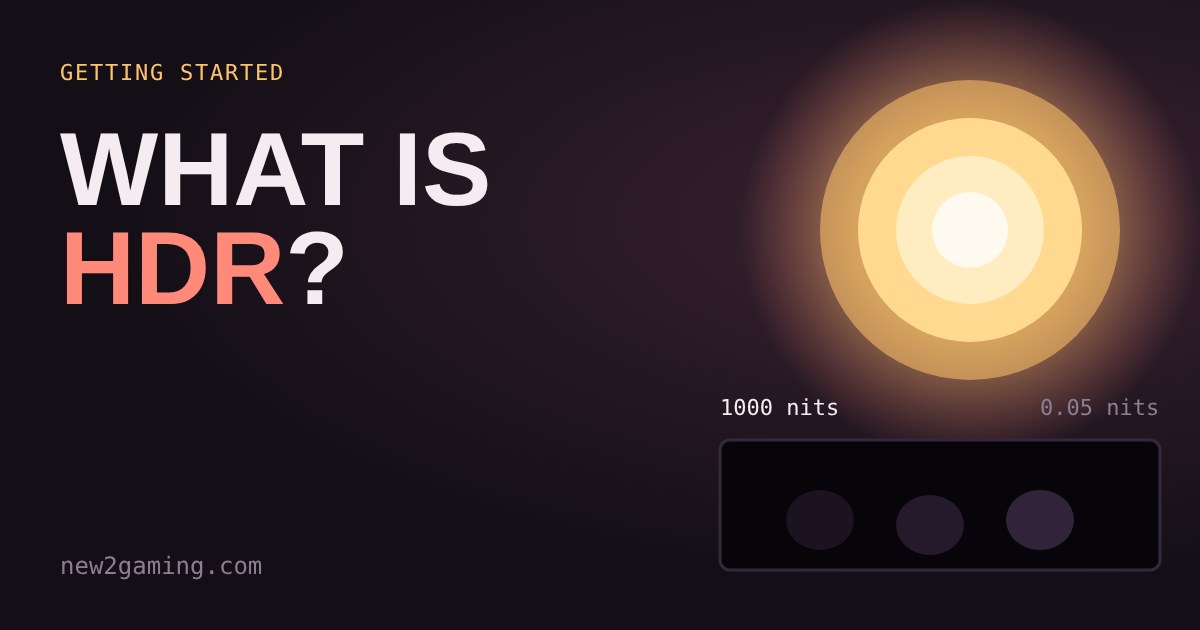
What HDR actually is
HDR stands for high dynamic range. "Dynamic range" is the gap between the darkest and brightest thing a screen can show at the same time. A normal (SDR) screen squeezes a whole scene into a fairly narrow brightness range. A sunny sky, a white shirt and a bright lamp all end up at about the same "as bright as the screen goes" white.
An HDR game sends the screen more information: how bright the sun really is compared with the sky, and how dark a shadow really is compared with a wall. If the screen can follow, the sun looks like a light source, not a white patch. Brightness is measured in nits. One nit is roughly the light of a single candle spread over a square metre, and a typical SDR monitor is somewhere around 250 to 300 nits at full brightness.
Two other things come with HDR. Colour is sent with more steps (HDR10, the common format, uses 10 bits per colour), which reduces visible banding in skies and fog. And the brightness values are absolute: the game is saying "this pixel should be 800 nits", not "this pixel should be 80% bright".
A bright monitor is not the same as a good HDR monitor
Because the picture only looks "high range" if bright and dark parts can sit side by side, brightness alone is not enough. A screen has to be bright in the sun and dark in the shadow next to it.
The VESA DisplayHDR labels give you a rough ladder. DisplayHDR 400, 600 and 1000 are named after the peak brightness they must reach: 400, 600 and 1,000 nits. The 400 tier is the entry level, and on many monitors it only means "a bit brighter than SDR, with the HDR signal accepted". Higher tiers add stronger demands, and screens with local dimming (the backlight is split into zones that dim separately) or OLED (every pixel lights itself, so black can be truly black) handle bright-next-to-dark scenes far better than a single backlight does.
Rule of thumb: a label tells you the screen accepts HDR, while the panel type, dimming and peak brightness tell you whether it looks good.
Try it: the same scene on different screens
Turning it on without ruining it
HDR only looks right when the whole chain agrees: the game, the system and the screen. Most "HDR looks washed out and grey" complaints come from one link being off.
On Windows 11, open Settings, then System, then Display, and switch on HDR for that screen (the Win+Alt+B shortcut also toggles it). Microsoft offers a free Windows HDR Calibration app in the Microsoft Store. It shows test patterns to find the darkest and brightest details your screen can show. It needs Windows 11 and a reasonably recent graphics card. PlayStation 5 and Xbox consoles have a similar HDR calibration screen in their video or display settings; run it once, with the room lighting you normally play in.
Then check the game. Many games ask you to set a peak brightness, usually with a logo that you adjust until it just disappears. That is the setting in the demo above: match it to what your screen can really do. Set it too low and the picture looks dull; set it too high and the brightest parts clip into flat white.
Two more details help. Turn off any "dynamic contrast", "vivid" or similar picture mode on the screen, since it fights the game's own brightness data. And if ordinary desktop windows look dull while HDR is on, use the SDR content brightness slider in Windows display settings; it changes only the non-HDR parts of your desktop.
When to leave HDR off
HDR is not automatically better. On a basic DisplayHDR 400 monitor with a single backlight, a game's HDR mode can look flatter or hazier than a well-tuned SDR picture, because the screen cannot make highlights stand out without lifting the blacks. If you flip it on and the picture looks worse, trust your eyes and switch it back.
It is also not needed for competitive shooters, where clarity and speed matter more than a beautiful sunset. In story games and slow, atmospheric games, a good HDR screen is one of the few upgrades that changes how the game feels. Try the setting in a dark, bright-lit scene you know well, and compare both modes before you decide.
More in Getting Started
all Getting Started →18 Oct Fullscreen, borderless or windowed? Which display mode to pick Every PC game asks you to choose Fullscreen, Borderless or Windowed. They all show the game, but they behave differently when you alt-tab… Getting Started
16 Oct Which graphics settings cost the most FPS? Shadows, ray tracing and textures explained Graphics presets like Low, High and Ultra hide a useful fact: settings do not cost the same. A few of them, such as ray tracing, shadows… Getting Started
14 Oct What is mouse sensitivity? DPI, eDPI and cm/360 explained Your mouse has a DPI, your game has a sensitivity, and players quote something called eDPI. It sounds like three settings, but they all… Getting Started
12 Oct What is field of view (FOV)? Why a wider view helps and when it hurts Field of view (FOV) is how much of the game world fits on your screen. Too narrow feels like a tunnel; too wide stretches the edges and can… Getting Started
10 Oct What are DLSS and FSR? How upscaling gives you more FPS Upscaling lets your graphics card draw fewer pixels and stretch the picture to fill your screen, which means more frames per second for… Getting Started
8 Oct What is V-Sync? Fix screen tearing without adding lag Your monitor redraws on a fixed clock, but your graphics card finishes frames whenever it likes. When the two collide you get screen…