Fullscreen, borderless or windowed? Which display mode to pick
Every PC game asks you to choose Fullscreen, Borderless or Windowed. They all show the game, but they behave differently when you alt-tab, use a second monitor or record your screen.
Try the interactive screen to see what each mode does, learn why the old speed gap has mostly closed, and pick the one that suits how you play.
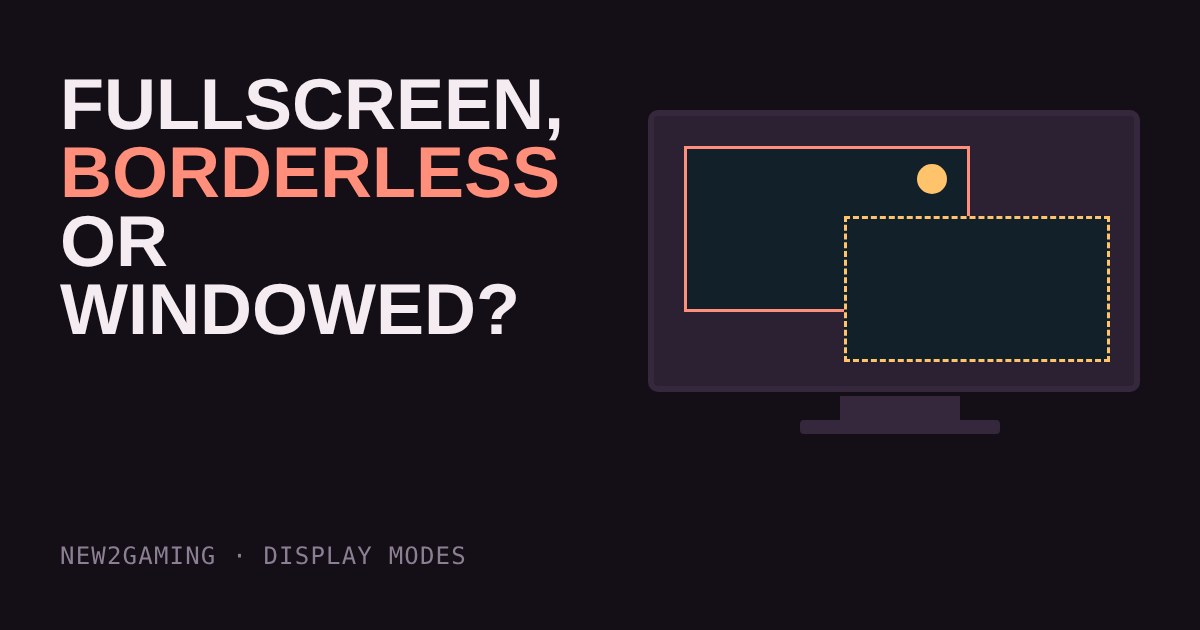
Open almost any PC game's video settings and you'll find a menu called Display Mode or Window Mode with three choices: Fullscreen, Borderless (or "Windowed Fullscreen") and Windowed. They all show the game. They behave differently when you alt-tab, plug in a second monitor or run a screen recorder. Here is what each one actually does, and which to pick.
What the three modes mean
Windowed is a normal program window with a title bar and borders. You can move it and resize it, and your desktop and taskbar stay visible around it. The game shares the screen with everything else, and Windows' desktop manager draws the final picture.
Borderless is a window with no title bar, stretched to cover the whole screen. It looks like fullscreen, but Windows still treats it as a window. That's why other programs, notifications and your second monitor keep working normally.
Fullscreen (often called "exclusive" fullscreen) is the oldest approach. The game takes over the display directly. It can change the screen's resolution and refresh rate, and the rest of Windows steps aside until you leave the game.
Why the old gap has mostly closed
Years ago, exclusive fullscreen was clearly the fast choice and borderless cost you some frames. Today the difference is usually small. Since Windows 10, Microsoft's "Fullscreen Optimizations" quietly runs many fullscreen games as borderless windows underneath. When only the game is on screen, Windows hands control back to the game so performance stays close to true fullscreen. Microsoft says its data shows performance on average matches or beats exclusive fullscreen, and it also makes alt-tab faster and overlays easier.
The exact result still depends on the game, your graphics driver and your setup. If you care about every millisecond, try both modes in your own game and see which feels smoother. For most beginners the difference will not be noticeable.
When each mode is the better pick
Borderless: the safe default
If you switch to a browser, chat or video call, have a second monitor, or use overlays and screen recording, borderless is the least fuss. Alt-tab is quick and nothing flickers.
Fullscreen: when you want the game to own the screen
Choose fullscreen if you want to run the game at a lower resolution than your desktop, or if borderless gives you stutter or a mismatched refresh rate and fullscreen fixes it. Expect a brief blank screen when you leave the game.
Windowed: when you are multitasking
Windowed is handy for following a guide next to the game, for playing a slower game while you work, or for testing a setting without leaving the game. A small window is also easier for your graphics card to draw than a full screen.
If something feels wrong
Most display-mode problems are easy to fix. If the picture looks blurry in borderless, check that the game's resolution matches your desktop resolution. If the game starts on the wrong monitor, set your main screen in Windows display settings, or move the game window there before switching modes. If alt-tab leaves a black screen or crashes, try borderless. If a recording or streaming program shows a black picture in fullscreen, switching to borderless is the usual first thing to try.
It also helps to remember that the setting is free and instant to change. Treat it like any other video option: try one mode for a gaming session, then swap if it doesn't feel right. Nothing about it is permanent, and no choice here can damage your screen or your PC.
What to look for
You don't need to buy anything here, just check a few settings:
Refresh rate. Make sure your monitor is set to its top refresh rate in Windows display settings. Borderless uses your desktop settings, so a wrong refresh rate there carries into the game.
Resolution. Borderless draws at your desktop resolution. If you want a lower one for more frames, use the game's own resolution scale or switch to fullscreen.
Your habits. If you alt-tab often, start with borderless. If you never leave the game, either mode works.
Stutter. If a game feels choppy in one mode, switch and test again before you change anything else.
More in Getting Started
all Getting Started →16 Oct Which graphics settings cost the most FPS? Shadows, ray tracing and textures explained Graphics presets like Low, High and Ultra hide a useful fact: settings do not cost the same. A few of them, such as ray tracing, shadows… Getting Started
14 Oct What is mouse sensitivity? DPI, eDPI and cm/360 explained Your mouse has a DPI, your game has a sensitivity, and players quote something called eDPI. It sounds like three settings, but they all… Getting Started
12 Oct What is field of view (FOV)? Why a wider view helps and when it hurts Field of view (FOV) is how much of the game world fits on your screen. Too narrow feels like a tunnel; too wide stretches the edges and can… Getting Started
10 Oct What are DLSS and FSR? How upscaling gives you more FPS Upscaling lets your graphics card draw fewer pixels and stretch the picture to fill your screen, which means more frames per second for… Getting Started
8 Oct What is V-Sync? Fix screen tearing without adding lag Your monitor redraws on a fixed clock, but your graphics card finishes frames whenever it likes. When the two collide you get screen… Getting Started
6 Oct What is a controller deadzone? Fix stick drift and sticky aim Your controller stick never rests at exactly zero, so games ignore a small circle around the centre. That circle is the deadzone. Too big…