What is V-Sync? Screen tearing, G-Sync and FreeSync explained
Why does your game screen sometimes show a torn line, and what do V-Sync, G-Sync and FreeSync do about it? This guide explains how your graphics card and monitor work on separate clocks, and lets you watch tearing happen in slow motion.
Try sync off, V-Sync and adaptive sync at different frame rates, see why 45 fps can fall to 30, and learn which setting to turn on first for your screen.
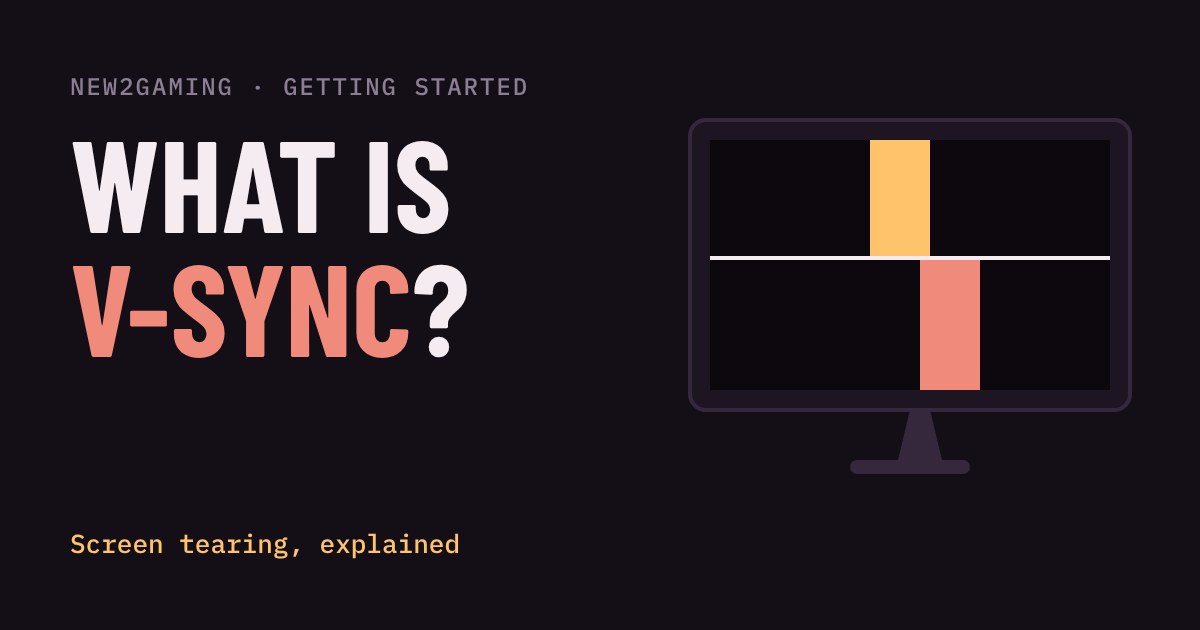
Why does my picture look torn?
Have you ever seen a horizontal line cut across the screen during fast movement, with the top half of the picture slightly out of line with the bottom half? That is screen tearing, and it is one of the first things new PC players notice and wonder about.
It happens because your graphics card and your monitor work on separate clocks. The graphics card (GPU) makes new pictures, called frames, as fast as it can. The monitor redraws the screen a fixed number of times per second, its refresh rate: 60 times per second on a 60 Hz monitor. Each redraw is a sweep from the top of the screen to the bottom.
If the GPU hands over a new frame while the monitor is halfway down that sweep, the top part of the screen shows the old frame and the bottom part shows the new one. The seam between them is the tear. The faster the action moves, the further apart the two halves are and the easier it is to spot.
See it for yourself
What V-Sync does
V-Sync (vertical synchronisation) is the oldest fix. It makes the GPU wait until the monitor has finished drawing the current frame before it swaps in a new one. Tearing disappears, because the swap can only happen between sweeps.
The price is waiting. In the demo, set the GPU to 45 fps with V-Sync on: a 60 Hz monitor refreshes every 16.7 ms, but your GPU needs 22 ms per frame. The frame is not ready for the next refresh, so the monitor shows the old picture again and the new frame waits for the refresh after that. On many setups the result is that 45 fps drops to 30 fps on screen. Move the slider above 60 and V-Sync simply caps you at 60.
That waiting also adds a little input lag, the delay between pressing a button and seeing the result. In a slow adventure game you will not notice. In a fast shooter you might.
Adaptive sync: let the monitor wait instead
Newer monitors can do the reverse. With adaptive sync, also called variable refresh rate (VRR), the monitor starts its sweep when a frame is ready instead of on a fixed timer. Nvidia calls its version G-Sync and AMD calls its version FreeSync. Many FreeSync monitors also work with Nvidia cards, and current consoles can use VRR when the TV or monitor supports it over HDMI.
Switch the demo to G-Sync / FreeSync and drag the slider. At 45 fps you see 45 fps, with no tears and no extra waiting. The catch is the range: each monitor only works between a minimum and a maximum refresh rate, and above the maximum you are back to tearing or V-Sync. That is why the usual advice is to cap your frame rate a few frames below the monitor's maximum, for example 141 fps on a 144 Hz screen, so the monitor stays in control.
What to switch on first
| Your screen | Start with |
|---|---|
| Has G-Sync or FreeSync | Turn adaptive sync on in the graphics driver, and cap fps a few below your refresh rate. |
| No adaptive sync, game runs above your refresh rate | Turn V-Sync on. Tearing stops, at the cost of a little lag. |
| No adaptive sync, game struggles to hit your refresh rate | Lower graphics settings until it holds the target, or try V-Sync off if lag bothers you and you can live with tears. |
| Competitive shooter, you want the lowest lag | Try sync off with a high frame rate. Each tear is smaller at high fps. |
If a screen has adaptive sync, check that it is enabled in the monitor's own menu as well, because some ship with it off. When it is on, it is usually listed under the driver's display settings for your card.
None of these settings damages anything, so experiment. If a game feels sluggish after you change something, undo the last change and test again. That one habit solves most settings problems for new players.
More in Getting Started
all Getting Started →20 Oct What is HDR in games? Nits, DisplayHDR and when to turn it on HDR promises brighter highlights and deeper shadows, but only if your screen, your system and your game agree. This guide explains what HDR… Getting Started
18 Oct Fullscreen, borderless or windowed? Which display mode to pick Every PC game asks you to choose Fullscreen, Borderless or Windowed. They all show the game, but they behave differently when you alt-tab… Getting Started
16 Oct Which graphics settings cost the most FPS? Shadows, ray tracing and textures explained Graphics presets like Low, High and Ultra hide a useful fact: settings do not cost the same. A few of them, such as ray tracing, shadows… Getting Started
14 Oct What is mouse sensitivity? DPI, eDPI and cm/360 explained Your mouse has a DPI, your game has a sensitivity, and players quote something called eDPI. It sounds like three settings, but they all… Getting Started
12 Oct What is field of view (FOV)? Why a wider view helps and when it hurts Field of view (FOV) is how much of the game world fits on your screen. Too narrow feels like a tunnel; too wide stretches the edges and can… Getting Started
10 Oct What are DLSS and FSR? How upscaling gives you more FPS Upscaling lets your graphics card draw fewer pixels and stretch the picture to fill your screen, which means more frames per second for…