How does a game camera follow you? Smoothing, dead zones and look-ahead
Every game has a camera, and how it follows you changes how the game feels. Learn the four common types: locked, smooth, dead zone and look-ahead.
Steer a hero through a big world and switch between cameras to see how smoothing, dead zones and look-ahead change what you see, and what to try first in your own game.
You move your character right, and the screen follows. It feels so natural that you never think about it. But behind the scenes, the game is running a small camera that has to decide, many times a second, where to look. Get it wrong and a game feels jerky, floaty or even makes you a little queasy. Get it right and nobody notices at all.
The camera is just a position
In most games, the world is bigger than your screen. The camera is a point in that world that says which part of it you can see. Everything is drawn relative to that point. Move the point right by 10 pixels, and every object on screen slides left by 10 pixels. That is all a camera is: a position, plus the size of the window you look through.
So the whole question becomes: each frame, where should that point go? The simplest answer is "exactly on the player". Every game maker starts there, and it works, but it has a few problems.
Locked to the player: simple, but stiff
If the camera copies the player's position every frame, the player never moves on screen. They sit dead centre while the whole world slides past. Every tiny twitch of the character is copied by the entire screen, and every sudden stop or turn makes the world lurch. In a fast game that can feel harsh.
It also hides information. You only see as much ahead of you as behind you, even though you are almost always heading forward.
Smoothing: let the camera chase
The most common fix is to let the camera chase the player instead of snapping to them. Each frame, the camera moves a fraction of the remaining distance towards its target. When the player is far away it moves quickly, and as it catches up it slows down gently. This is often called lerp (short for linear interpolation) or damping, and engines such as Godot and Unity's Cinemachine have built-in settings for it.
The strength is a trade-off. A little smoothing hides jitter and makes turns feel soft. Too much and the camera lags so far behind that you run off screen, which feels floaty and unresponsive.
One detail matters for makers: the fraction should be based on the time that passed, not on the frame count. Otherwise a camera that feels fine at 60 FPS behaves differently at 144 FPS. The demo below uses the time-based version, so it feels the same on any screen.
Dead zones: don't react to every wiggle
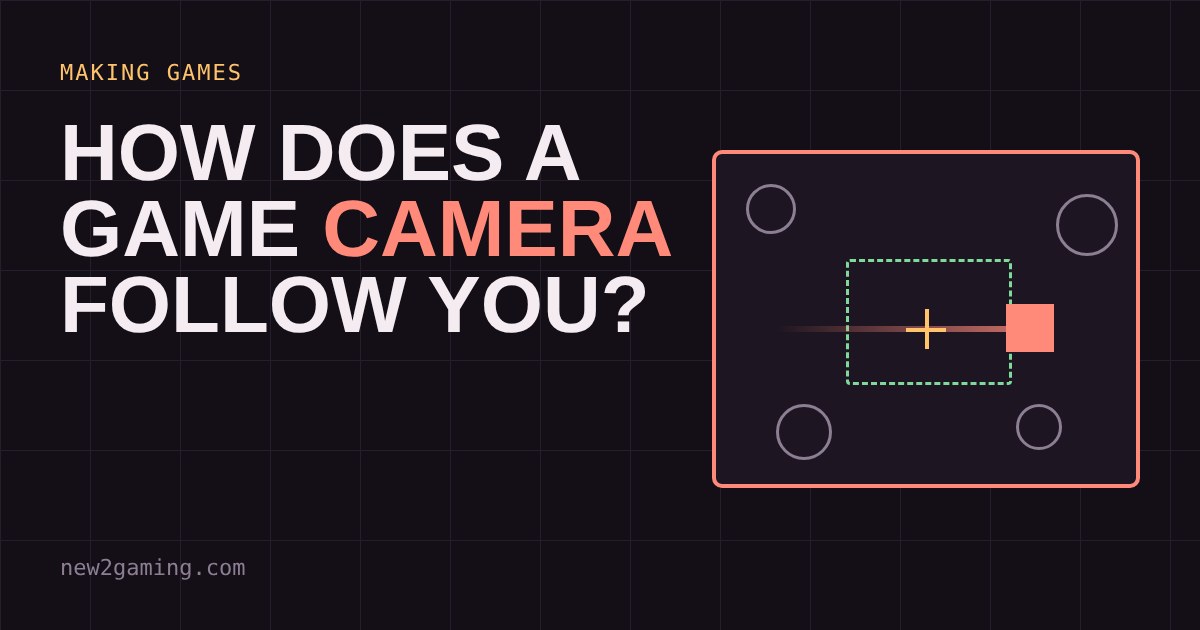
A dead zone is a box in the middle of the screen. While the player moves inside the box, the camera does not move at all. Only when the player pushes against the edge does the camera start to follow. This is popular in platformers, because small hops and steps no longer shake the whole screen.
Look-ahead: show where they are going
The look-ahead trick aims the camera slightly ahead of the player, in the direction they are moving. You then see more of what is coming and less of what you left behind. Combined with smoothing, the view drifts forward when you run and settles back when you stop.
Try it: four cameras, one hero
Below, the hero (the coral square) moves around a big world. Steer with the arrow buttons or the arrow keys, or press and hold anywhere on the view to walk towards your finger. Or press Auto-run to let the hero run a route with sharp turns. Switch camera types and watch where the hero sits on screen. The readout shows how far the hero is from the centre of your view.
What to look for
If you are building your own game, a few rules of thumb help. Start with a small amount of smoothing and raise it only until jitter disappears; if you can feel the lag, you have gone too far. Use a dead zone for precise platforming, so small hops do not shake the screen. Use look-ahead for fast games where seeing ahead matters more than seeing behind. And always keep the player inside the view, whatever the camera does.
Next time you play, watch where your character sits on screen while you run and while you stop. That small choice, made by a few lines of camera code, is a big part of why a game feels good.
More in Making Games
all Making Games →18 Oct Why does a game run faster on a faster PC? Game loop and delta time explained Ever noticed a game run faster on a quicker computer? That's the game loop at work. If you move things a fixed amount every frame, a faster… Making Games
16 Oct What is game juice? Screen shake, hit-stop and why hits feel good Two games can have identical rules and still feel completely different. The difference is often juice: small effects like screen shake… Making Games
14 Oct How are 2D game levels built? Tilemaps explained Most 2D game levels are not big pictures. They are a grid of numbers that points at a small set of repeating tiles. That is called a… Making Games
10 Oct How does a game remember your progress? Save files explained How does a game remember where you stopped? It writes a small file of facts, called the game state, and reads it back when you load. Try a… Making Games
7 Oct How does a 2D character walk? Sprite sheets and animation speed Every 2D game character walks the same way a flipbook does: a few drawings shown one after another. Games pack those drawings into a single… Making Games
5 Oct How does a game enemy decide what to do? State machines for beginners Ever wondered how a game guard knows when to chase you? Most enemies run on a state machine: they are always in exactly one state, like…