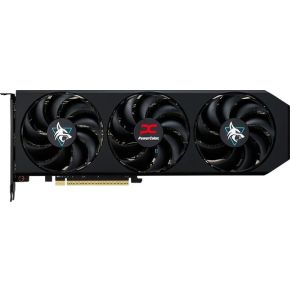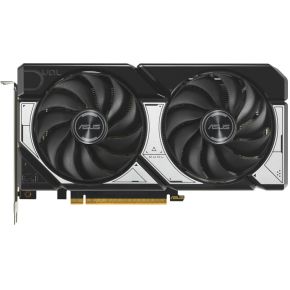
Budget
ASUS DUAL GeForce RTX 5060 OC 8GB
A fit for the entry tier in the demo: 1080p at 60 to 144 FPS. Keep texture settings sensible, since 8 GB is the minimum we suggest.
photos, specs, all 6 shops →- RTX 5060
- 8 GB GDDR7
- Aimed at 1080p
Which graphics card you need depends less on brand names and more on your screen. Resolution sets how many pixels the card draws each frame, and frame rate sets how often.
Use the interactive to pick 1080p, 1440p or 4K, choose 60, 120 or 165 FPS, and see how the load grows and which tier of card it points to. You will also see how upscaling like DLSS and FSR can move you down a tier, and how much video memory each resolution needs.
Buying a graphics card (GPU) feels like picking from a wall of confusing names. There is a simpler way in: start from the screen you will play on. The number of pixels your GPU has to draw, and how many times per second, decides which tier of card you need.
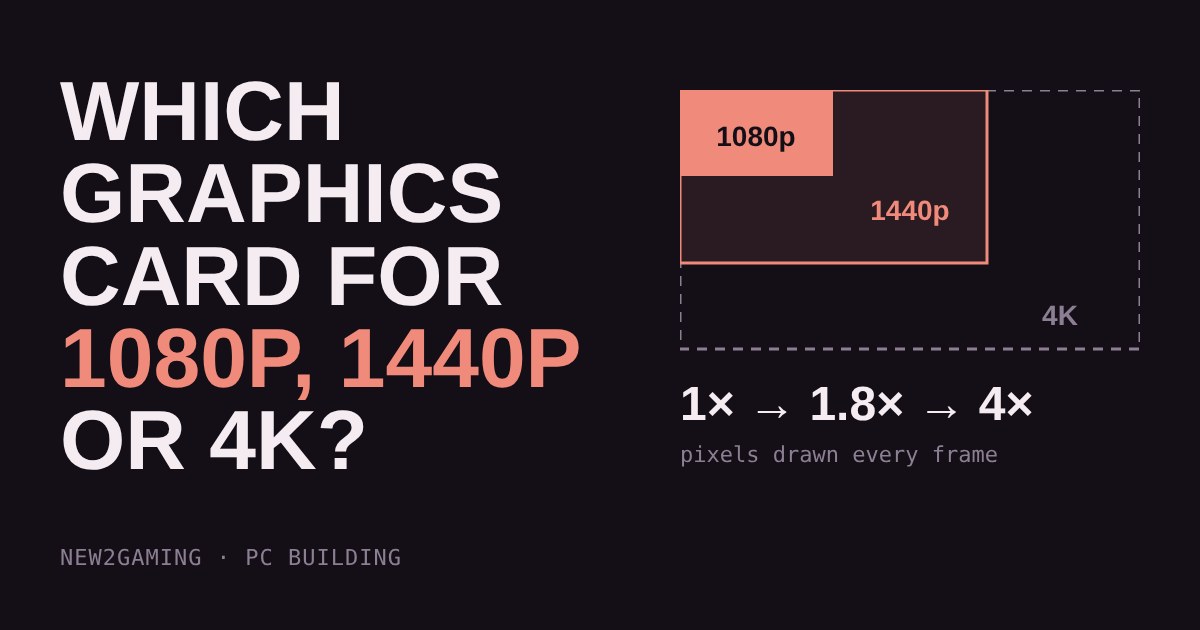
Resolution is how many dots make up the picture. A 1080p screen is 1920 × 1080 dots, about 2.1 million. A 1440p screen is 2560 × 1440, about 3.7 million. A 4K screen is 3840 × 2160, about 8.3 million.
Every one of those dots has to be coloured, lit and shaded again for every frame. That makes 1440p roughly 1.8 times the work of 1080p, and 4K exactly 4 times the work. The jump from 1440p to 4K is bigger than the jump from 1080p to 1440p, even though the names make it sound smaller.
Frame rate is how many pictures the GPU draws each second. Going from 60 to 120 frames per second (FPS) means twice as many pictures, so roughly twice the work. The load on your GPU is about pixels per frame × frames per second.
That is why two people can both say "I play at 1440p" and need very different cards: one is happy at 60 FPS, the other wants 165 FPS for a fast shooter.
These are rules of thumb for recent games on high settings, not guarantees. Some games are far lighter than others, and settings matter as much as the card.
| You want | Load | Card tier |
|---|---|---|
| 1080p at 60 FPS | 1× | Entry |
| 1080p at 144–165 FPS | 2.4–2.75× | Mid-range |
| 1440p at 60–100 FPS | 1.8–3× | Mid-range |
| 1440p at 144+ FPS | 4.3×+ | High-end |
| 4K at 60 FPS | 4× | High-end |
| 4K at 120+ FPS | 8×+ | Top tier |
Upscaling tools such as DLSS, FSR and XeSS draw the game at a lower resolution and then rebuild a sharper picture. In "Quality" mode they typically render at about two thirds of the width and height, which is only around 44% of the pixels. Tick the box in the demo and watch the load drop. It is the cheapest way to make a mid-range card feel like a bigger one, at the cost of small image artefacts in some games.
Higher resolutions also use more video memory (VRAM), because textures and frame buffers get bigger. For 1080p, 8 GB is workable but starting to feel tight in newer games. For 1440p, 12 to 16 GB is a safer choice. For 4K, aim for 16 GB. Running out of VRAM causes stutter that no amount of raw speed fixes.
At every budget, decide your screen first and your card second. A powerful card on a 1080p 60 Hz screen is wasted; a weak card on a 4K screen will disappoint.
Entry budget: a card aimed at 1080p, with at least 8 GB of VRAM, and a monitor at 1080p. Middle budget: a card marketed for 1440p, with 12 to 16 GB of VRAM, and a 1440p screen at 144 Hz or more. Bigger budget: 16 GB of VRAM, a good upscaler, and a power supply big enough for the card's rated power draw. In all cases, check the card fits your case and that your processor can feed it, and remember that your monitor's refresh rate caps the FPS you can actually see.
A fit for the entry tier in the demo: 1080p at 60 to 144 FPS. Keep texture settings sensible, since 8 GB is the minimum we suggest.
photos, specs, all 6 shops →A mid-range card with 16 GB of video memory, which suits 1440p screens and gives headroom for bigger textures.
photos, specs, all 3 shops →A high-end card for 1440p at high refresh rates, or 4K at 60 FPS with upscaling switched on.
photos, specs, all 3 shops →