Budget
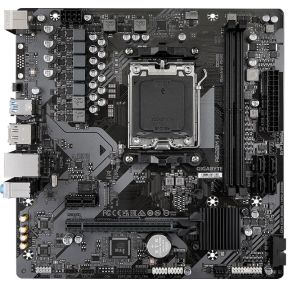
Moederbord AMD Gigabyte A620M H
An entry chipset in the compact micro-ATX size. It covers the basics of a first AM5 build, without CPU overclocking.
photos, specs, all 5 shops →- A620 chipset
- Socket AM5
- micro-ATX
A motherboard decides which processor fits, which memory you use, how many drives you can add and what size of case you need. It barely changes frame rates, so it is easy to overspend or to buy one that blocks your plans.
This guide explains socket, size and chipset in plain words, with a scale drawing of the three common sizes and a quick checklist that suggests a size and chipset tier for how you play.
A motherboard is the circuit board everything else plugs into. It decides which processor you can use, how much memory fits, how many drives you can add and what size of case you need. It rarely changes how many frames you get, which is why it is easy to overspend on it, or to buy one that quietly blocks your plans.
The socket is the physical grid the processor sits in. A processor only fits the socket it was made for, so choose the processor first and the board second. Today AMD's mainstream desktop chips use a socket called AM5, and Intel has used LGA1700 and, for its newer Core Ultra 200S chips, LGA1851. The box or product page of both parts lists the socket. If the names differ, they will not fit.
The socket also decides the memory type. AM5 boards take DDR5 only. Some older Intel boards take DDR4 and others DDR5, and the two are not interchangeable, so check which one your board lists before you buy RAM.
Boards come in standard sizes, and the case has to support the one you pick. The three common sizes are ATX (305 × 244 mm), micro-ATX (244 × 244 mm) and Mini-ITX (170 × 170 mm). Smaller boards fit smaller cases, but they have fewer slots for add-in cards, and Mini-ITX boards usually have just two memory slots. A bigger case also tends to have more room for airflow. Cases list the sizes they accept, and many that take ATX also take the two smaller ones, but check the case page.
The chipset is a support chip on the board. It sets how many fast connections the board offers and which extras are allowed. For gaming, three differences matter. First, overclocking the processor, which means running it faster than its default speed. On AMD's AM5 platform the entry A620 chipset does not allow it, while B650, B850 and X870 do. On Intel, CPU overclocking needs a Z-series board. Second, the speed of the SSD slot: entry boards usually stop at PCIe 4.0, which is already very fast for games. Third, the number of USB ports and extra SSD slots.
Notice what is not on this list: frame rates. A cheaper chipset runs the same processor at the same speed unless you overclock. Most beginners never need to, so an entry or mainstream chipset is a sound choice for a first build.
At every budget the same few checks apply. Match the socket to your processor and the memory type to your RAM. Match the size to your case. Count the connectors you need: memory slots, M.2 slots for SSDs, and USB ports on the back. Look for built-in Wi-Fi if your PC will not sit next to a router, since a board without it needs an extra card or a cable.
On a tight budget, a micro-ATX board with an entry chipset is enough. In the middle, look for a board with more M.2 slots and Wi-Fi. If you spend more, do it for features you will actually use, such as extra SSD slots or overclocking, not for looks. Check the board's page for the supported processors too, because some older boards need a BIOS (firmware) update before a newer processor works.
An entry chipset in the compact micro-ATX size. It covers the basics of a first AM5 build, without CPU overclocking.
photos, specs, all 5 shops →Mainstream chipset that allows overclocking, in micro-ATX with built-in Wi-Fi, so it suits most gaming builds.
photos, specs, all 4 shops →A newer chipset in full ATX, for more room and expansion slots when you want to add drives and cards later.
photos, specs, all 3 shops →
