What "ultrawide" actually means
A normal monitor is 16:9: for every 16 units of width there are 9 of height. An ultrawide keeps roughly the same height and adds width. The common one is 21:9 (really about 43:18, shown as 3440×1440), and the extreme one is 32:9 (5120×1440 or 3840×1080), which is basically two 16:9 screens glued together.
The number in inches is a diagonal, and that is why ultrawides confuse beginners. A 34-inch ultrawide is not a bigger version of a 27-inch screen. It is about as tall as one, only much wider.
Same height, more width
Do the sums and it becomes clear. A 27-inch 16:9 monitor is roughly 60 cm wide and 34 cm tall. A 34-inch 21:9 is roughly 80 cm wide and 33 cm tall. A 49-inch 32:9 is roughly 120 cm wide and 34 cm tall. The height barely changes. What you gain is side-to-side view: more of the world on either side of your crosshair in a racing game or a shooter, and a wider map in strategy games.
It also costs desk space. A 49-inch screen needs a desk that is well over a metre wide, and you turn your head to look at the edges.
Try it: screen size, curve and distance
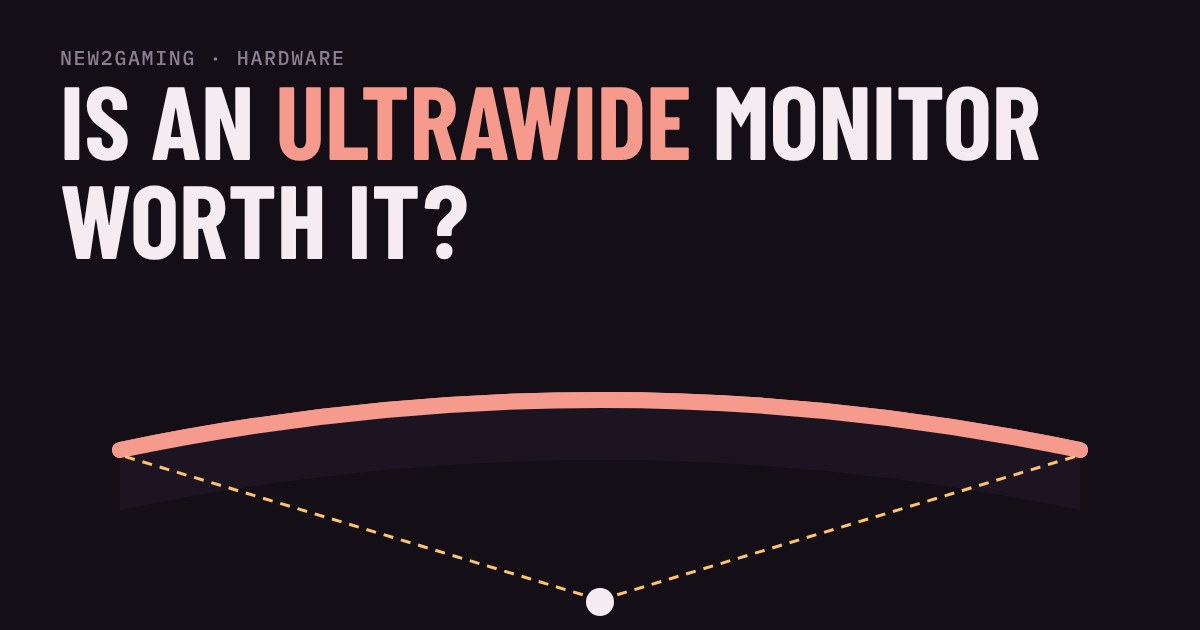
The diagram below is a top-down view of your desk, drawn to scale. You sit at the bottom. Pick a screen, then change the curve and how far you sit, and watch how far the edges are from your eyes.
Two things stand out. First, on a 27-inch screen the curve barely matters: the edges are already close to the same distance as the middle. Second, on a 34-inch or wider screen a flat panel puts the edges noticeably farther away, so a curve is useful there. The best fit is when the curve radius is close to your viewing distance in centimetres (a 1000R screen suits about 100 cm; most people sit closer, which is why 1500R and 1800R suit a desk well).
What it does to your graphics card
More width means more pixels. A 2560×1440 screen has about 3.7 million pixels. A 3440×1440 ultrawide has about 5.0 million, roughly a third more, so you can expect somewhat lower frame rates than a 27-inch 1440p screen on the same graphics card. A 5120×1440 super ultrawide has about 7.4 million, close to double. For comparison, 4K has about 8.3 million. Rule of thumb: an ultrawide 1440p screen asks for a graphics card between 1440p and 4K level.
Do games actually support it?
Most modern single-player and racing games handle 21:9 well, and many 32:9 too. Some games, particularly older ones and some competitive shooters, do not, and you get black bars on the sides or a stretched image. Cutscenes are often locked to 16:9 as well. Check the games you play most before you buy; the settings menu or the game's support page will say whether the wider view is supported.
Ultrawide or two monitors?
A 34-inch ultrawide and two 24-inch screens side by side cost about the same, and both give you room for a game on one side and chat or a guide on the other. The difference is the gap. Two screens have a bezel (the plastic frame) down the middle, which is annoying in a game but handy for keeping windows separate. An ultrawide has no gap, so games fill it smoothly, but you have one cable, one stand and one set of settings to deal with.
A 32:9 screen is the middle ground: no bezel, and with window-snapping built into Windows you can split it into two or three tidy columns. If you mostly play games full-screen, 21:9 is the easier first step. If you also work or study on the same screen, 32:9 or two monitors makes more sense.
Is ultrawide good for competitive games?
It depends on the game. In a fast shooter you want a small area to look at, and a wide screen makes you move your eyes more. Many players in those games prefer a standard 16:9 screen with a very high refresh rate. In racing, flight, open-world and strategy games, the extra width is a real advantage because it fills your side vision and shows more of the map. Choose by the games you play, not by what looks most impressive in a shop.
What to look for
At every budget, start with the resolution: aim for 3440×1440 on a 34-inch screen, because a 2560×1080 panel stretches fewer pixels over the same width, so text and edges look less sharp. Then the refresh rate, and make sure your graphics card can use it.
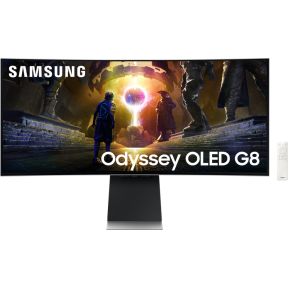
At the budget end, a VA panel with a 1500R curve gives good contrast and a high refresh rate for a lower price. Around the middle, look for 144 Hz or more, adaptive sync (FreeSync or G-Sync), and a stand that adjusts height. At the top, OLED brings near-instant response and deep blacks; check the maker's notes on brightness and screen care.
Finally, measure your desk. You want at least 80 cm of width for a 34-inch screen and plan on more than that for a 49-inch one.