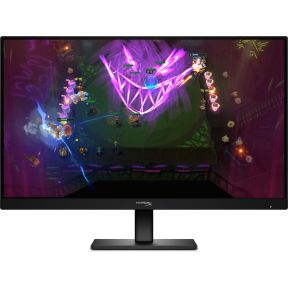
The box says 1 ms. Another monitor says 5 ms. A third, much more expensive one says 0.03 ms. Does that mean the first one is fast enough, and what is the number even measuring? This guide explains response time in plain words, shows you what a slow pixel looks like, and tells you when it is worth paying for a faster one.
What response time measures
A monitor is a grid of tiny pixels. Each one has to change colour every time the picture changes, and that change is not instant. Response time is how long a pixel needs to go from one shade to another. Shorter is better. The usual unit is the millisecond (ms), one thousandth of a second.
When a pixel is slow, the old picture lingers for a moment after the new one has arrived. On a fast-moving object this shows up as a smeary trail behind it. That trail is called ghosting. You notice it most on dark scenes with bright moving things: a white crosshair, a character against a night sky, or the ball in a sports game.
Why "1 ms" is not the whole story
Two different numbers hide behind the same "ms" on a spec sheet, and they do not mean the same thing.
GtG (grey to grey) is the time a pixel takes to move between two shades of grey. Makers usually time the middle part of the change, from 10% to 90% of the way, because the last tenth is slow and hard to measure. Many boxes also quote only the fastest transition the panel can manage, and other colour changes can be several times slower.
MPRT (moving picture response time) is a different idea: how long each frame stays lit on screen. A normal monitor holds every frame until the next one arrives, so at 60 Hz a frame stays up for about 16.7 ms no matter how fast the pixels are. That holding is also a source of blur. A "1 ms MPRT" figure usually relies on a special backlight-flashing mode, which is not the same as 1 ms GtG.
The practical rule: compare GtG with GtG, and treat one big claimed number as a starting point, not a promise.
Overdrive: the speed-up that can backfire
LCD panels (IPS, VA and TN) are not fast on their own, so makers push the pixels with a trick called overdrive: the monitor briefly applies a stronger voltage than the final colour needs, so the pixel gets there sooner. Most gaming monitors let you pick a level in their menu, often named something like Off, Normal, Fast or Extreme.
Try the buttons above. With overdrive off the trail is long. With a balanced setting it is shorter. With it set too high, the pixel shoots past its target colour and has to settle back, which leaves a bright or dark halo around moving objects. This is called overshoot or inverse ghosting, and it can look worse than the ghosting it was meant to fix. If you see strange glowing outlines, turn the setting down one step.
The best setting depends on the refresh rate you are running, so adjust it with your game running at the speed you normally play.
How fast is fast enough?
A pixel only needs to finish changing before the next frame arrives. At 60 Hz that is about 16.7 ms between frames. At 144 Hz it is about 6.9 ms, at 180 Hz about 5.6 ms, and at 240 Hz about 4.2 ms. So the higher your refresh rate, the faster the pixels have to be to keep up. A panel that smears at 240 Hz can look fine at 60 Hz.
OLED screens work differently. Each pixel makes its own light and switches in a tiny fraction of a millisecond, so ghosting from slow pixels is basically gone. They can still show some motion blur because each frame is held on screen, but the trails you see on slow LCDs do not appear.
For most beginners on a 60 to 144 Hz setup, a decent IPS monitor with a sensible overdrive setting is plenty. Response time matters more as you chase high refresh rates and fast shooters.
What to look for
On a tight budget: choose a Full HD IPS monitor that quotes a GtG time (not only MPRT), has adaptive sync, and lets you change the overdrive level in its menu. Do not pay extra for a smaller number on the box alone.
In the middle: a 1440p IPS panel with a high refresh rate gives you a sharper picture, and the response time should stay low at that rate. Look for independent measurements if you can, since claims at this price vary a lot.
At the top: an OLED monitor removes pixel ghosting almost completely. Expect a much higher price, and read about burn-in care and brightness before you decide.
Whatever you pick, check whether the quoted time is GtG or MPRT, and whether it is for the default mode or a special one.