Is this game okay for my child? A five-minute check before you say yes
An age rating tells you what is in a game, not what happens around it: who can chat with your child, what the shop pushes, and what keeps them logging in every day.
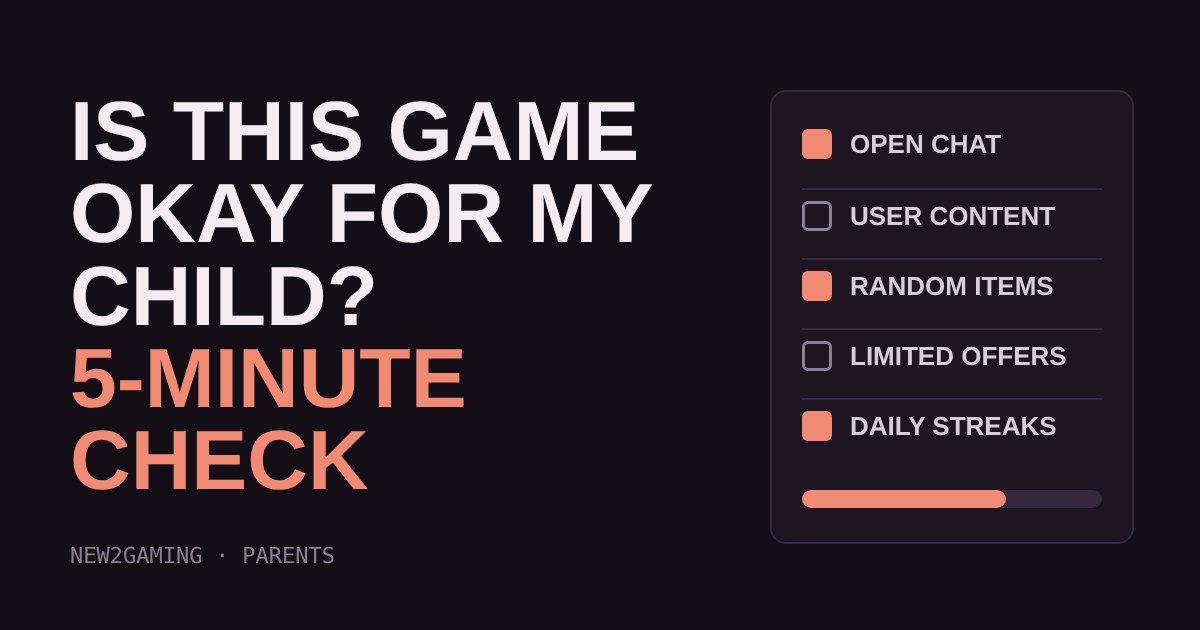
Use this five-minute pre-check on the store page. Tick what you see for a pretend game, set your child's age, and get a short list of settings to change before the first session.
A rating is a starting point, not a verdict
Your child asks, "Can I get this game?" The age rating on the box answers one question: what is in the game, such as violence or scary scenes. It says much less about what happens around the game: who can message your child, what the shop offers, and what keeps them coming back every day.
The good news is that most of those answers sit on the store page, and you can read them in about five minutes. This guide shows you what to look for, then lets you try it on a pretend game.
Step 1: read both parts of the label
Ratings come in two parts. The age (PEGI 3, 7, 12, 16, 18 in Europe, or ESRB E, E10+, T, M in North America) is the headline. The small print is the useful part: content descriptors for things like violence or bad language, and notices for the online features.
Two notices matter most for parents. In-Game Purchases means the game lets you buy extra items without leaving it. Includes Random Items means you can pay without knowing what you get, which is how loot boxes, card packs and prize wheels work. ESRB also uses Users Interact, which it describes as possible exposure to unfiltered user-generated content.
One caution: ratings bodies generally do not rate what other players say or make online. A game can carry a low age rating and still let strangers talk to your child, so always check the online features yourself.
Step 2: look for the four pressure points
PEGI announced in March 2026 that it would look at four "interactive risk" areas when rating new games, from June 2026. Older games are not re-rated unless they change a lot, so many games your child asks for will not reflect this yet. The four areas are a handy checklist either way:
Spending. Time-limited or quantity-limited offers now get at least PEGI 12. Random paid items get at least PEGI 16 by default. Return rewards. Daily quests and login streaks get at least PEGI 7, and penalties for not coming back (losing progress or content) get at least PEGI 12. Communication. Games with entirely unrestricted chat, with no blocking or reporting, are rated PEGI 18.
Try it: the five-minute pre-check
Pretend you are reading a store page. Tick what the page says and watch the check-list build itself.
Step 3: set it up before the first session
Do the settings on day one, not after something goes wrong. On a console or phone, use the family account tools to set a spending limit or require approval for purchases, restrict who can contact your child, and set play-time limits. Then open the game itself: many have their own chat, privacy and spending controls that sit on top of the system ones.
For a young child, play the first few sessions together. Ten minutes beside them tells you more than any label: how the game talks to your child, what it keeps asking them to do, and whether stopping is easy.
Step 4: agree on the rules out loud
Settings fail when a child can simply ask someone else, so also agree a few simple rules. Nobody buys anything without asking. Strangers who ask to chat or move to another app are told to a parent. And a bad moment (something scary, a rude message) is never punished by taking the game away, or your child will stop telling you.
What to look for
When a new game is requested, check four things: the age rating and its descriptors, the online features (chat, user-made content, location), the shop (random items and countdown offers), and the pull to return (streaks and daily rewards). If a game fails one, set a control. If it fails several, wait a year, or play it together first.
More in Parents
all Parents →19 Oct How much gaming is too much? Build a screen-time plan that fits the day There is no single right number of gaming hours, because what matters is what the gaming pushes out. This guide shows a simple order of… Parents
17 Oct Which parental controls should you switch on first? A setup planner by age Every console has parental controls, but the menus are long and confusing. This guide boils them down to four switches: time, spending… Parents
15 Oct How much does in-game currency really cost? Gems, packs and spending limits Games sell extras with made-up currency, and packs rarely match item prices, so leftovers nudge you to buy more. Try a mock shop to see the… Parents
13 Oct Mute, block or report? Which button to press when a player is a problem Games give you three tools for dealing with unpleasant players: mute, block and report. They do very different jobs, and the right one… Parents
11 Oct How loud is too loud? Headset volume and your child's hearing Loud headset audio can damage hearing slowly and painlessly, and the volume number on a console is not a safe guide. What matters is how… Parents
7 Oct Is that free coins offer real? How to spot gaming scams Gaming scams work because games run on things children want: free coins, rare items and friends. Most follow four patterns: the…