Which graphics settings cost the most FPS? Shadows, ray tracing and textures explained
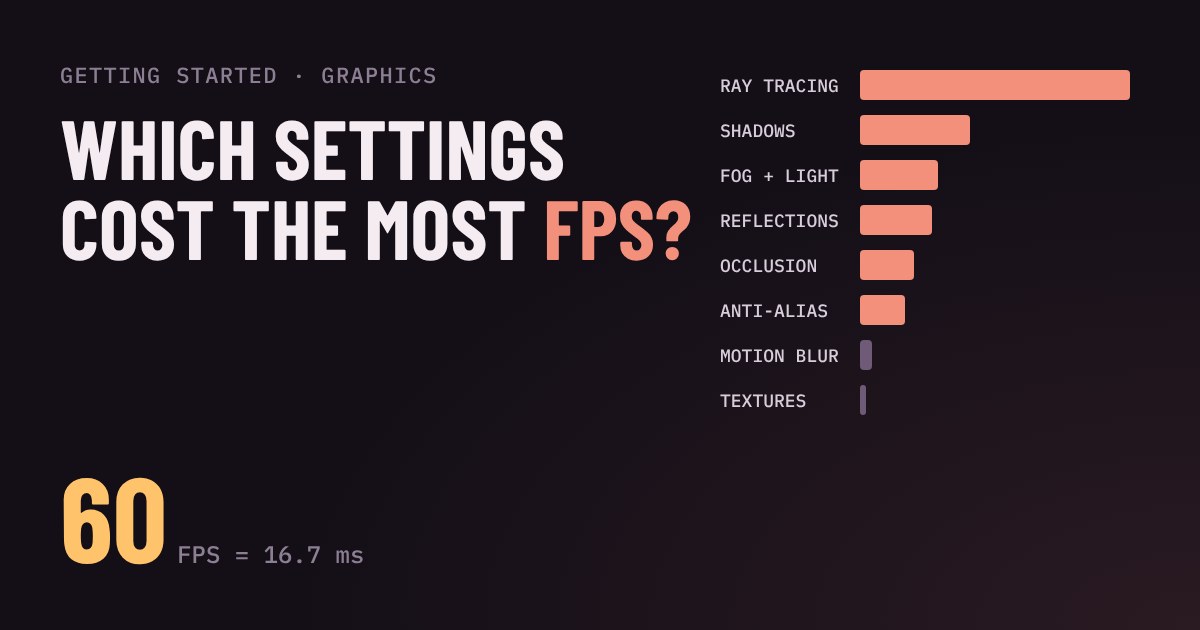
Graphics presets like Low, High and Ultra hide a useful fact: settings do not cost the same. A few of them, such as ray tracing, shadows and volumetric effects, eat most of your frame rate, while others, like motion blur, cost almost nothing.
Spend an illustrative frame budget in a live settings panel, see why textures use video memory rather than speed, and learn which switch to lower first when a game is slow or stutters.
Why "Ultra" is not one switch
Open the graphics menu of almost any PC game and you meet a wall of options: shadows, reflections, textures, anti-aliasing, ambient occlusion. The presets called Low, Medium, High and Ultra just set all of them at once. That is convenient, but it hides the useful fact: settings do not cost the same. A few of them eat most of your frame rate, and several others change how the game looks very little while costing almost nothing.
If you know which is which, you can lower two or three expensive settings, keep everything else high, and get a smooth game that still looks good. Frame rate (FPS) is simply how many pictures your graphics card draws each second. Each picture has a time budget: 60 FPS means about 16.7 milliseconds per picture. Every setting you raise takes a slice of that budget.
Try it: spend your frame budget
Below is a made-up game. Change the settings and watch the budget. The numbers are illustrative, not measured: real games differ, but the pattern (a few big spenders, a few cheap ones) is the same almost everywhere.
The big spenders
These settings make the card do a lot of extra maths for every picture, so they cost the most frame rate:
Ray tracing simulates how light bounces, for reflections, shadows or full lighting. It looks great and is usually the most expensive option in the menu. Shadows come next: high settings draw sharper, more detailed shadows from more lights. Volumetric effects (light shafts, fog, clouds) and reflections are also heavy. Ambient occlusion, the soft darkening in corners and creases, sits in the middle. Higher resolution is its own big cost, because the card must colour more pixels; upscalers such as DLSS and FSR exist to give some of that back.
The cheap ones
Motion blur, bloom and film grain add little cost and many players switch them off for taste, not speed. Anti-aliasing, which smooths jagged edges, varies: simple modes are light and heavier ones cost more. Because the saving is small, change these for how the picture feels to you.
Textures: a memory setting, not a speed setting
Textures are the images wrapped around objects: skin, walls, ground. They are stored in your card's video memory (VRAM). If the card has enough memory, high textures cost very little frame rate, so lowering them rarely helps. But if the game needs more VRAM than the card has, it has to borrow from slower system memory and you get stutters and hitches. Try the "Graphics card memory" menu in the demo: on a smaller card, high textures can overflow and the warning appears.
The rule: if FPS is low, cut shadows, ray tracing and volumetrics. If the game stutters or hitches, lower textures.
A simple way to tune any game
Start from the preset closest to what you want, then lower the biggest spenders one step at a time until the game feels smooth. Look at the picture after each change. Many menus show a memory bar that warns you before VRAM runs out. Before you buy a bigger card, it is worth ten minutes in this menu.
What to look for
If you are choosing a graphics card with settings in mind: at an entry budget, aim for smooth 1080p with the big spenders on medium and enough VRAM for medium textures. In the middle, look for strong performance at 1440p and enough memory that high textures do not overflow. At the top end, pay for ray tracing speed and extra VRAM only if you plan to play with those switched on. Whatever the budget, upscaling support is a cheap way to gain frames.
More in Getting Started
all Getting Started →18 Oct Fullscreen, borderless or windowed? Which display mode to pick Every PC game asks you to choose Fullscreen, Borderless or Windowed. They all show the game, but they behave differently when you alt-tab… Getting Started
14 Oct What is mouse sensitivity? DPI, eDPI and cm/360 explained Your mouse has a DPI, your game has a sensitivity, and players quote something called eDPI. It sounds like three settings, but they all… Getting Started
12 Oct What is field of view (FOV)? Why a wider view helps and when it hurts Field of view (FOV) is how much of the game world fits on your screen. Too narrow feels like a tunnel; too wide stretches the edges and can… Getting Started
10 Oct What are DLSS and FSR? How upscaling gives you more FPS Upscaling lets your graphics card draw fewer pixels and stretch the picture to fill your screen, which means more frames per second for… Getting Started
8 Oct What is V-Sync? Fix screen tearing without adding lag Your monitor redraws on a fixed clock, but your graphics card finishes frames whenever it likes. When the two collide you get screen… Getting Started
6 Oct What is a controller deadzone? Fix stick drift and sticky aim Your controller stick never rests at exactly zero, so games ignore a small circle around the centre. That circle is the deadzone. Too big…