
Budget
LG Electronics 24G411A-B.AEU
A 24 inch 1080p IPS panel at 144 Hz: the cheapest way to feel the jump from 60 Hz, and an easy load for a modest graphics card.
photos, specs, all 2 shops →- 24" Full HD IPS
- 144 Hz
- Low-cost entry
Do you really need a *144 Hz monitor*? Refresh rate is how many pictures your screen shows each second, and it changes how smooth fast motion feels.
Pick a rate and a speed in the demo and watch the jumps between pictures shrink, then see why each upgrade past 144 Hz gives you less. Learn what your PC or console must deliver, and what to look for at each budget.
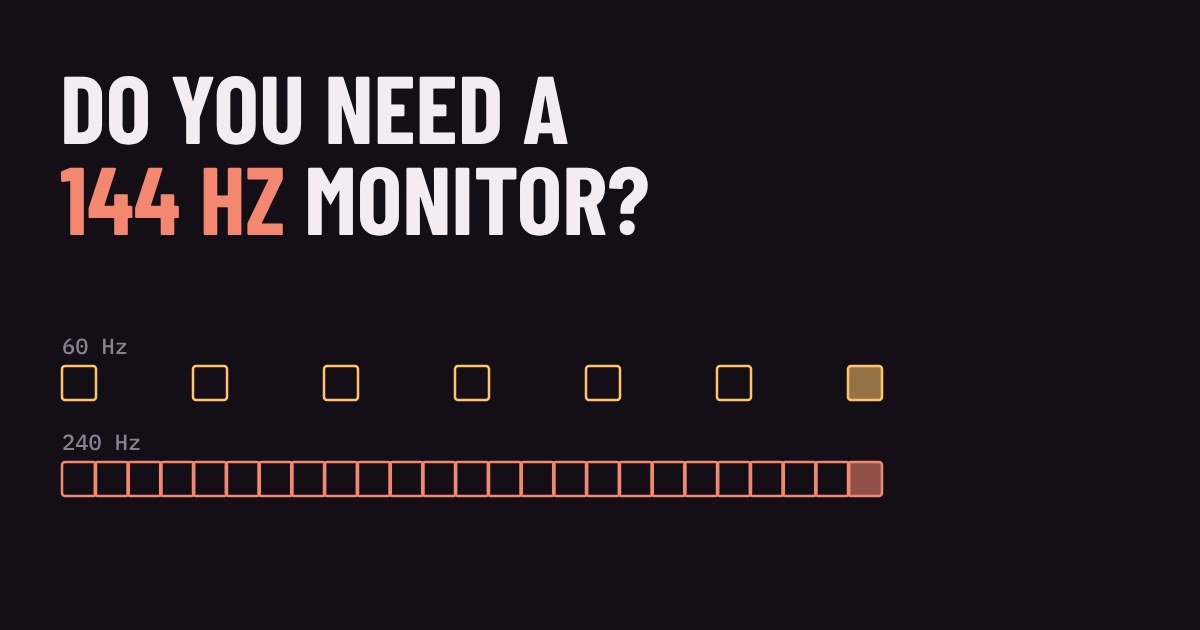
A monitor doesn't show smooth motion. It shows a series of still pictures, one after another, and your brain joins them up. The refresh rate, measured in hertz (Hz), is how many of those pictures the screen can show every second. A 60 Hz monitor redraws 60 times a second, a 144 Hz monitor 144 times, and so on.
Flip that around and you get the number that matters for how it feels: the time each picture stays on screen. At 60 Hz it is about 16.7 milliseconds. At 144 Hz it is about 6.9 ms. At 240 Hz it is about 4.2 ms. Shorter means the picture changes more often, so fast movement is shown in smaller steps.
The demo below follows a square crossing the screen for one tenth of a second. Each outline is one picture the monitor shows. Pick a refresh rate and a speed and compare it with a plain 60 Hz screen. The replay runs ten times slower than real life so you can watch the pictures arrive.
Notice what happens as you raise the rate. At 60 Hz the square leaps in big jumps, and at high speed there are gaps wide enough to see between each outline. At 144 Hz the outlines sit close together. At 240 and 360 Hz they almost merge into one smooth smear of motion. Your eyes track moving objects, so smaller jumps mean less blur and less of that stuttery, hopping look when you spin the camera.
Here is the catch: the gains shrink. Going from 60 Hz to 144 Hz shortens each picture by about 9.7 ms. Going from 144 Hz to 240 Hz saves only about 2.8 ms more, and 240 Hz to 360 Hz saves about 1.4 ms. Each step costs more money and demands a stronger computer, but you feel a smaller change.
That is why the jump from a plain 60 Hz office monitor to something around 120 to 144 Hz is the one almost everyone notices, even just moving the mouse across the desktop. Beyond that, the difference is real but mostly matters to people playing fast competitive shooters.
A 144 Hz monitor doesn't make a game run at 144 frames per second. Your PC or console has to produce those frames. If a game runs at 60 frames per second, a 144 Hz monitor still shows 60 different pictures a second. High refresh only pays off when your graphics card can keep up, which is why a 240 Hz monitor is wasted on a computer that manages 90 fps in your favourite game.
Two settings catch beginners out. First, many monitors run at 60 Hz until you change it in your display settings, even though they can do more. Check it after you plug in. Second, the cable matters: use a DisplayPort cable, or an HDMI cable and port that support your target rate. Consoles such as PS5 and Xbox Series X can output 120 Hz in games that support it, but only through the right HDMI port on a screen that accepts it. Our guide on using a PC monitor with a console covers that.
Look for variable refresh rate too, sold as FreeSync or G-Sync. It lets the monitor change its refresh rate to match the frames your game is producing, which prevents tearing (the screen showing two half-pictures at once) without adding the delay that V-Sync can bring.
If you mostly play slower games, such as story adventures, strategy or farming games, 60 Hz is perfectly playable and you won't be missing the experience. A 100 to 144 Hz monitor is a nice step up if the price is close. If you play shooters, racing or any fast action game online, 144 Hz is where it starts to feel clearly smoother and is the sensible target. Go to 240 Hz or more only if your hardware already reaches 200 frames per second in the games you play, and you care about every edge.
Remember too that resolution and refresh rate compete for the same graphics card power. A sharper 1440p screen needs more from your PC than a 1080p one to reach the same frame rate.
On a tight budget: a 24 inch 1080p monitor with 100 to 144 Hz and an IPS panel is the best value. Check that adaptive sync (FreeSync or G-Sync Compatible) is supported, and make sure it has a DisplayPort input.
In the middle: a 27 inch 1440p monitor at 144 to 240 Hz gives a sharper picture and smooth motion if your graphics card can push the frames. Look for a stand that adjusts height, so you sit comfortably.
At the top end: an OLED panel at 240 Hz or more shows motion very cleanly because pixels change colour almost instantly. It costs a lot more and needs a strong PC, so only choose it if you will use all of that speed.
A 24 inch 1080p IPS panel at 144 Hz: the cheapest way to feel the jump from 60 Hz, and an easy load for a modest graphics card.
photos, specs, all 2 shops →A sharper 1440p screen with a fast 240 Hz refresh and an adjustable stand. Worth it if your graphics card can push well past 144 frames per second.
photos, specs, all 7 shops →An OLED panel at 240 Hz shows fast motion very cleanly. A big step in price, best for fast competitive games and a strong PC.
photos, specs, all 6 shops →
