What is V-Sync? Fix screen tearing without adding lag
Your monitor redraws on a fixed clock, but your graphics card finishes frames whenever it likes. When the two collide you get screen tearing, a horizontal seam in fast motion.
V-Sync fixes it by making frames wait for the next refresh, at the cost of a little extra delay. Variable refresh rate (G-Sync, FreeSync) is often better. Try the live demo to see the trade-off.
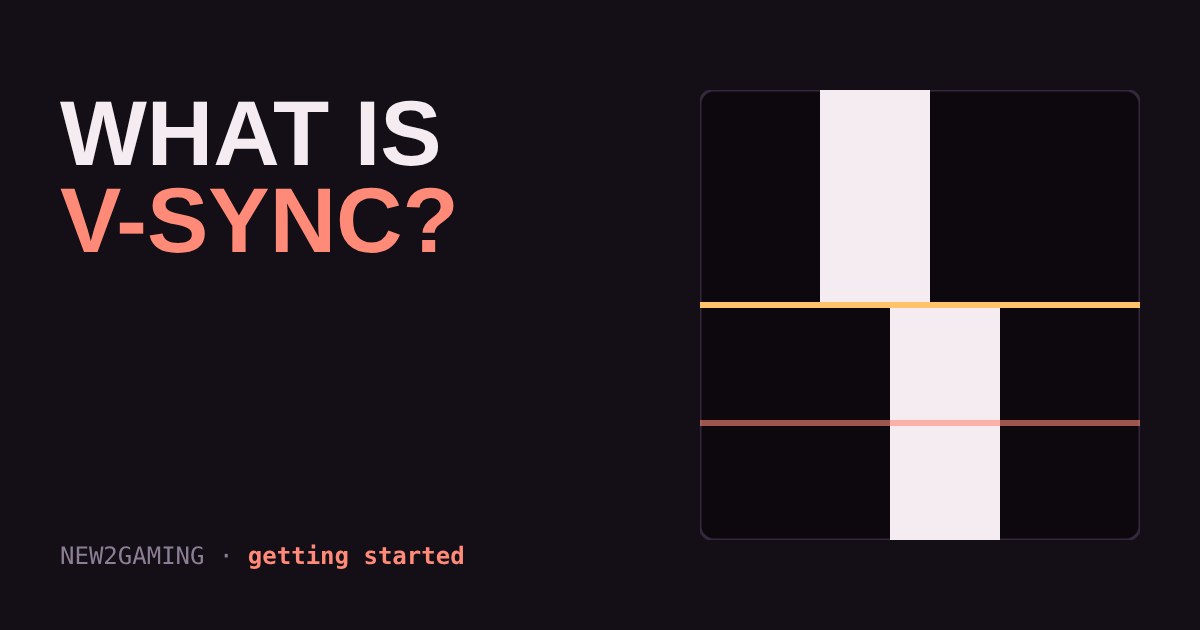
The problem V-Sync solves
Your monitor redraws the picture a fixed number of times per second. A 60 Hz screen does it 60 times, a 144 Hz screen 144 times. Your graphics card, on the other hand, finishes frames whenever it is ready, and that speed changes from second to second.
When the card hands over a new frame while the monitor is halfway through drawing the old one, the screen shows the top part of one frame and the bottom part of the next. The seam between them is called screen tearing. It looks like a horizontal crack that jumps around during fast sideways movement.
What V-Sync does
V-Sync (vertical synchronisation) makes the game wait. A new frame is only swapped in at the exact moment the monitor starts a fresh redraw. No swap mid-draw means no tear.
The price is waiting. If a frame misses the deadline, it sits until the next refresh. With classic V-Sync on a 60 Hz screen, a card that can only manage 50 fps may be pushed down to 30 fps, because every frame just misses the 1/60 second deadline and waits for the next one. Many modern drivers and games soften this with extra buffering, but you still get uneven frame times and extra delay between pressing a button and seeing the result.
Try it yourself
Pick a refresh rate, set how fast your graphics card renders, and switch V-Sync on or off. The white bar sweeps across the screen like the monitor redraw. Watch the seam.
Two things to notice. With V-Sync off the torn count climbs whenever your fps and the refresh rate do not line up, and a higher fps does not remove tearing, it only changes where the seam lands. With V-Sync on the tears disappear, but the average wait before a frame is shown goes up, and a slow card loses frames it could otherwise have displayed.
Variable refresh rate: the better fix
Variable refresh rate (VRR) flips the problem around. Instead of making the game wait for the monitor, the monitor waits for the game. It starts each redraw when a frame is ready, within the range the screen supports. NVIDIA calls its version G-Sync, AMD calls its FreeSync, and the open standard behind much of it is HDMI and DisplayPort adaptive sync. You need a monitor and a graphics card that both support it, and it must be switched on in the monitor menu and the graphics driver.
VRR only works inside the monitor's range. If your fps goes above the maximum refresh rate, tearing can return. That is why many guides suggest turning on V-Sync in the driver alongside VRR, and capping the frame rate a few fps below the maximum refresh rate. The V-Sync setting then only acts as a safety net near the top of the range.
Which setting should you use?
| Your setup | Try this |
|---|---|
| Monitor with VRR (G-Sync or FreeSync) | Turn VRR on, V-Sync on in the driver, cap fps a few below max refresh |
| No VRR, game runs well above refresh rate | V-Sync on is fine for slow, cinematic games; off if you want the lowest delay |
| No VRR, game runs below refresh rate | Lower graphics settings until you hit the refresh rate, or accept some tearing |
| Competitive shooter | V-Sync off or VRR with a cap: delay matters more than a perfect picture |
What to remember
Tearing is a timing mismatch, not a sign of a broken screen. V-Sync fixes it by making frames wait, which costs a little responsiveness. VRR fixes it by making the screen wait, which is why it is usually the nicer answer if your monitor has it. Consoles handle most of this for you, but many TVs and monitors still have a VRR switch worth checking.
More in Getting Started
all Getting Started →18 Oct Fullscreen, borderless or windowed? Which display mode to pick Every PC game asks you to choose Fullscreen, Borderless or Windowed. They all show the game, but they behave differently when you alt-tab… Getting Started
16 Oct Which graphics settings cost the most FPS? Shadows, ray tracing and textures explained Graphics presets like Low, High and Ultra hide a useful fact: settings do not cost the same. A few of them, such as ray tracing, shadows… Getting Started
14 Oct What is mouse sensitivity? DPI, eDPI and cm/360 explained Your mouse has a DPI, your game has a sensitivity, and players quote something called eDPI. It sounds like three settings, but they all… Getting Started
12 Oct What is field of view (FOV)? Why a wider view helps and when it hurts Field of view (FOV) is how much of the game world fits on your screen. Too narrow feels like a tunnel; too wide stretches the edges and can… Getting Started
10 Oct What are DLSS and FSR? How upscaling gives you more FPS Upscaling lets your graphics card draw fewer pixels and stretch the picture to fill your screen, which means more frames per second for… Getting Started
6 Oct What is a controller deadzone? Fix stick drift and sticky aim Your controller stick never rests at exactly zero, so games ignore a small circle around the centre. That circle is the deadzone. Too big…