Performance or Quality mode? What your console's graphics modes really change
Many console games make you pick between Performance mode and Quality mode. One favours a smoother frame rate, the other a sharper picture.
Compare both side by side, learn what frame rate and resolution really change, and pick the mode that suits the games you play.
Two modes, one choice
Many console games ask you to pick between two modes before you play. They go by different names (Performance and Quality, Performance and Fidelity, Performance and Resolution), but the trade is always the same. Your console can only do so much work each second, and the game has to decide where to spend it.
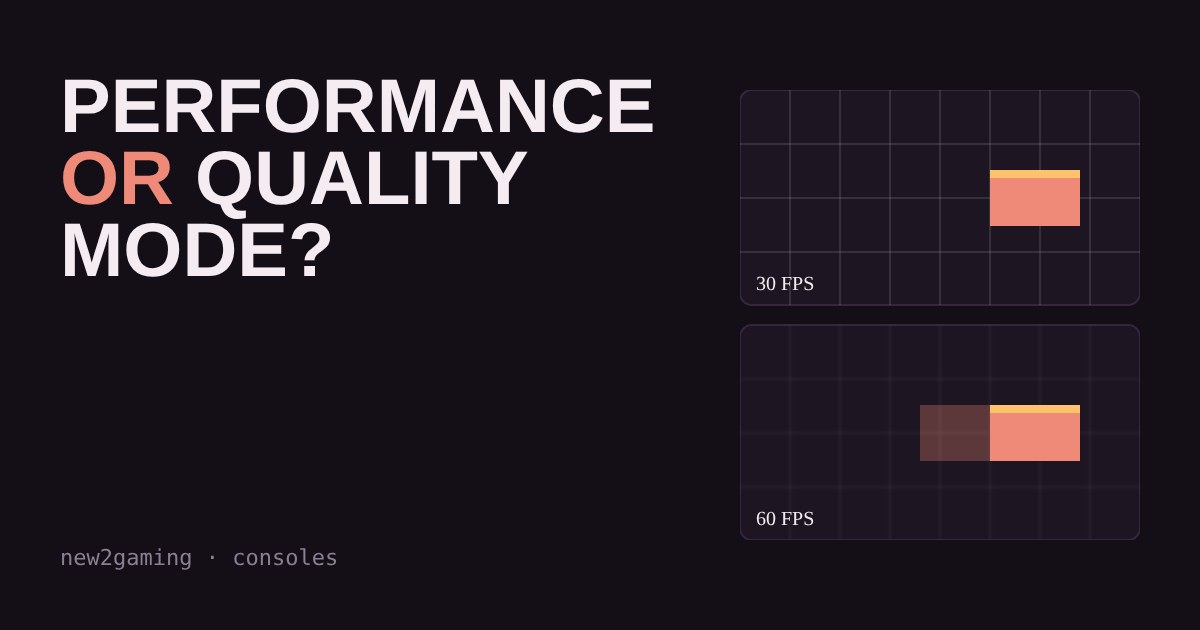
In Performance mode the game spends its effort on frame rate: how many new pictures it draws per second. Usually the target is 60 frames per second (fps). To get there it lowers the resolution or trims effects such as shadows and reflections. In Quality mode the game spends its effort on image quality: sharper resolution and richer effects. The cost is that the frame rate is often lower, commonly around 30 fps.
Exact targets differ from game to game, and some games offer a third option, so check the in-game menu. The idea below holds almost everywhere.
See the trade-off
The two panels show the same scene moving at the same speed. The left one is drawn like Quality mode: sharper, but it updates 30 times a second. The right one is drawn like Performance mode: a bit softer, but it updates 60 times a second. Drag the speed slider and watch which one feels smoother and which one looks crisper.
What frame rate does to feel
A frame rate is just how often the picture refreshes. At 30 fps a new picture arrives every 33 milliseconds; at 60 fps, every 17. That halves the wait between what you do on the controller and what you see change, and it makes fast movement, like swinging the camera, look continuous instead of steppy. This matters most in games where you react quickly: shooters, racing, fighting games and platformers. Slow, cinematic adventures cope with 30 fps far better.
What resolution does to feel
Resolution is how many tiny dots make up the picture. More dots means finer edges and more visible detail in far-away objects. But how much of that you can actually see depends on your screen size and how far you sit from it. On a small screen, or from across the room, the jump from a lower to a higher resolution is much harder to notice than the jump from 30 to 60 fps. Many games also use clever upscaling, so Performance mode often looks closer to Quality mode than the numbers suggest.
Which mode should you pick?
| If you… | Lean towards |
|---|---|
| play fast or competitive games | Performance |
| feel motion looks juddery or controls feel heavy | Performance |
| play slow, story-led games and love detail | Quality |
| sit close to a large 4K TV | Quality may be worth it |
| aren't sure | Try both for five minutes each |
You can also set a system-wide default on your console so every new game starts in the mode you prefer. On PlayStation 5 it lives in the Game Presets menu under Saved Data and Game/App Settings. Individual games can override it, so it is still worth checking the in-game options.
What about 120 Hz?
Some games on newer consoles offer a 120 fps option. Seeing it needs a screen that can show 120 Hz at your chosen resolution, which on a TV usually means a model with an HDMI 2.1 port, plus the right cable and the setting turned on in your console's video options. Check your TV or monitor manual for the exact modes it supports. If your screen only does 60 Hz, a 120 fps mode gives you no benefit.
The short version
If a game feels sluggish or juddery, switch to Performance mode first. If you mostly play slow, pretty games on a big screen close up, give Quality mode a go. You are not locked in: you can change modes any time, and the right answer is the one that feels best to you.
More in Consoles
all Consoles →19 Oct Which headset works on your console? PS5, Xbox and Switch 2 connections explained Buying a headset that your console can't use is an easy and costly mistake. Each console accepts a different mix of connections: a 3.5 mm… Consoles
17 Oct Do you need a controller charging dock? Battery life for PS5, Xbox and Switch 2 How long does a console controller really last, and do you need a charging dock? Compare typical battery life for the PS5 DualSense, Xbox… Consoles
15 Oct Does your console need more storage? PS5, Xbox and Switch 2 expansion explained Game consoles run out of storage faster than you expect, because the number on the box is not the space you get for games. This guide shows… Consoles
11 Oct Why does your TV feel laggy for gaming? Input lag and Game Mode explained Your TV can add dozens of milliseconds between pressing a button and seeing the result, because it spends time on picture processing meant… Consoles
8 Oct Is a pro controller worth it? Back buttons, triggers and battery Pro controllers cost two to three times as much as standard ones, and the extra money buys a short list of features: back buttons, trigger… Consoles
6 Oct Can you use a PC monitor with a PS5 or Xbox? HDMI 2.1, 4K and 120 Hz explained A PC monitor can be a great screen for your PS5 or Xbox, but only if its HDMI port can carry what the console sends. HDMI 2.1 is the…